Help
Connect an MCP server
Give your agents the tools of any remote MCP server, in every chat. It takes about two minutes.
Before you start
- You need the server’s URL. It usually ends in /mcp, for example https://mcp.deepwiki.com/mcp.
- Only remote servers reachable over the internet work. Servers that run on your own computer cannot be added.
- A workspace admin adds the connector once. After that, everyone on the team connects with their own account.
1. Open Connectors
Under the message box, click Connectors, then Manage connectors. You can also open Settings and choose Connectors.
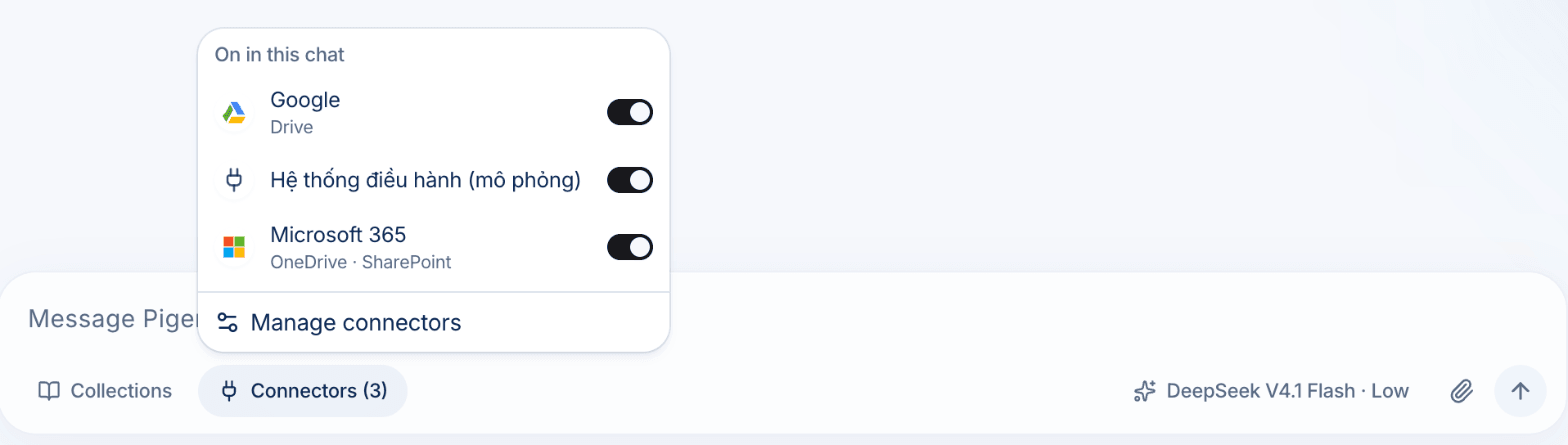
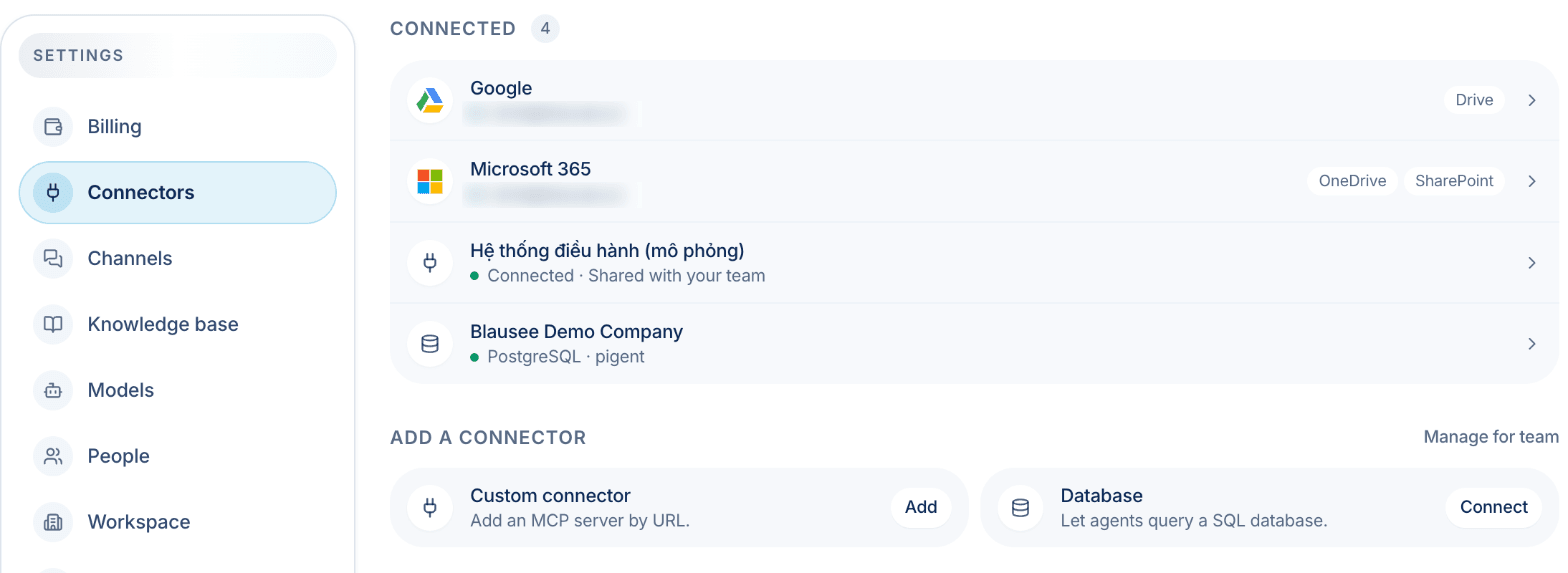
2. Add a custom connector
Under Add a connector, click Add next to Custom connector.
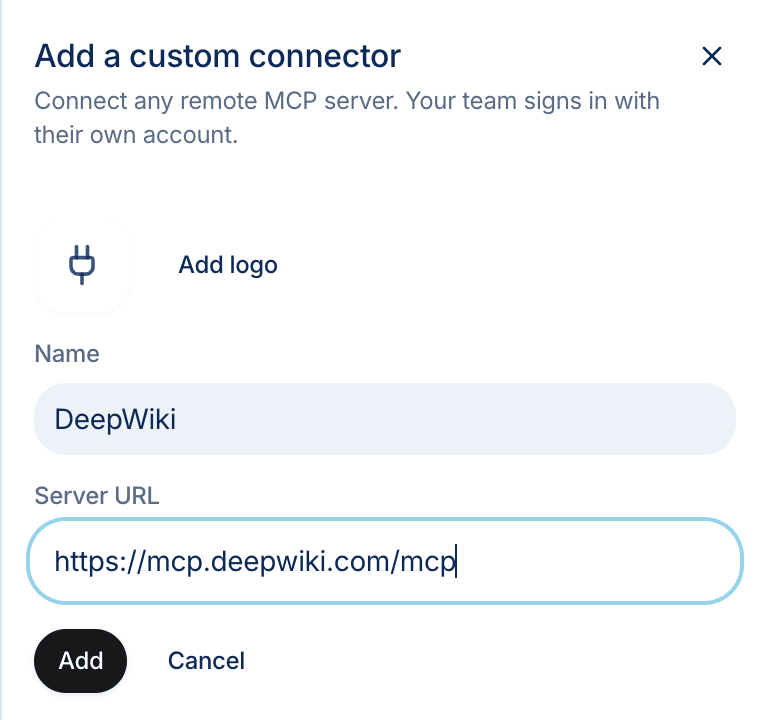
3. Enter the name and URL
Give it a name your team will recognize, paste the server URL, and click Add. Blausee checks the server and works out how it signs in, so there is nothing else to configure.
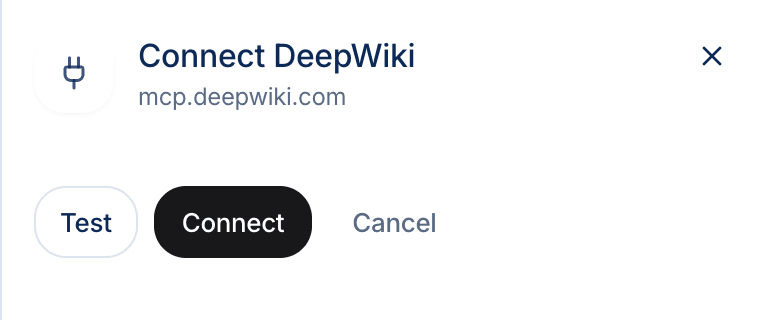
4. Connect
Click Connect. If the server needs a sign-in, a window opens so you can sign in with your own account. If it needs an API key, paste the key. Click Test first if you want to check the server is working.
When it is ready, the connector shows as Connected.

5. Choose what agents may do
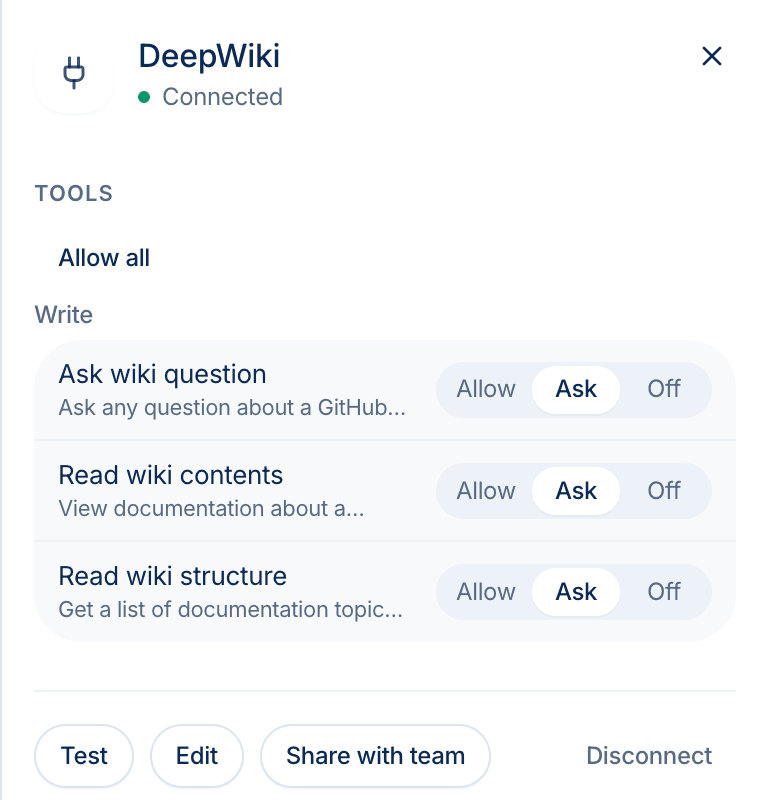
Click the connector to see its tools. For each tool, choose Allow to let agents use it freely, Ask to approve each use in chat, or Off. Tools that can make changes start at Ask. Admins can also click Share with team so everyone can use this connection without signing in.
6. Use it in chat
Just ask. Your connected servers are on in every chat. When a tool is set to Ask, the agent pauses and shows what it wants to send. Choose Allow once, Always allow, or Deny.


To turn a connector off for one chat, click Connectors under the message box and switch it off.
If something goes wrong
- “Couldn’t reach that MCP server.” Check the URL for typos and make sure the server is reachable from the internet.
- “That URL doesn’t look like an MCP server.” The address is reachable but is not the MCP endpoint. Check the server’s documentation for its MCP URL, which usually ends in /mcp.
- Needs reconnect Your sign-in expired. Open the connector and click Reconnect.
- No Custom connector tile Only workspace admins can add custom connectors. Ask your admin, or contact us if you are the admin.
- Wrong URL A saved connector’s URL cannot be changed, so your sign-in is never sent to a different server. Remove it and add a new one.
Still stuck? Email sales@blausee.ai and we will help.